
Blog
Calendar Integration
February 4, 2026
New Feature: Calendar Integration for Training Sessions
Training Manager Web Edition now features calendar integration that streamlines session attendance management by sending meeting invitations directly to students' email calendars.
How It Works
When students respond to calendar invitations, their responses automatically sync to Training Manager, giving administrators real-time visibility into attendance intentions—all from a single location.
Key Benefits
- Automated Updates: Student responses sync automatically to the session page
- Centralized Management: View all attendance information in one place
- Proactive Planning: Identify attendance issues before the session starts
- Waitlist Optimization: Fill vacant spots quickly based on responses
- Time Tracking: See when each student responded to invitations
Response Status Indicators
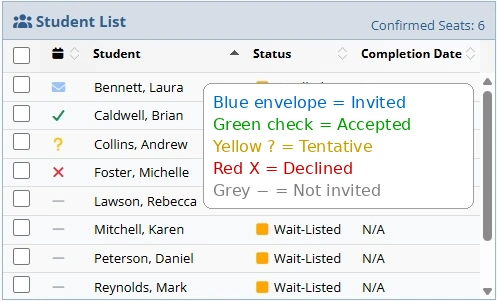
The Calendar column on the session page displays each student's response with visual indicators:
- Invited (✉): Student has been invited
- Accepted (✓): Student confirmed attendance
- Declined (✗): Student cannot attend
- Tentative (?): Student is unsure about attendance
- Not Invited (—): Student has not been invited
Managing Sessions Based on Responses
When Students Decline:
Consider updating the student's status to "Cancelled" and sending calendar invitations to waitlist students
to fill the open spot.
Tentative Responses:
If the session has a waitlist, contact the student before the event to confirm attendance. This helps
ensure you can fill spots from the waitlist if needed.
No Response:
If a student doesn't respond and the session has a waitlist, follow up directly to confirm their
attendance intentions. After the session, if the student doesn't attend, update their status to "No Show".
Viewing Response Details
Hover your mouse over the calendar icon to see the date and time the student responded. This timestamp is especially helpful when managing waitlists to determine response order.
Best Practices
- Send invitations 1-2 weeks in advance when possible
- Monitor responses daily as the session date approaches
- Follow up on tentative responses 2-3 days before the session
- Update student status based on actual attendance, not just calendar responses
- Document any communication or special circumstances in student notes
Important Note
Calendar responses inform but don't replace attendance tracking. Actual attendance must still be recorded after the session. Some email clients may not send automatic responses if the student responds after a certain time period, so consider contacting students directly to confirm attendance when needed.
Learn More
For detailed instructions and step-by-step guidance, see the Calendar Integration User Guide .